
Gemini Omni 1.1 Flash: How to Extend Scenes, Cut With First/Last Frames, and Finish in 4K
Learn how to use Gemini Omni 1.1 Flash's new video controls: extend scenes from 10s to 40s, generate first/last-frame transitions, draft in 360p and finish in 4K — with the prompt patterns and limits short-video creators need to know.

Google's Gemini Omni 1.1 Flash update (August 27, 2026) turned the Omni Flash video model from a clip generator into something closer to a directing tool. Three of the new controls matter directly for short-video work: scene extension, which grows a 10-second clip into up to 40 seconds in 10-second steps; first/last-frame interpolation, which animates a continuous shot between two keyframes so you can cut scenes without a jump cut; and 4K output, which makes the final master sharp enough for production use — with cheap 360p drafts for the throwaway iterations in between.
This guide walks through each control the way a short-video creator actually uses it: what it does, how to prompt it, and the limits that will bite you if you don't plan around them. One thing to know up front: the full control set lives in Google's developer surfaces (the Gemini API and Google AI Studio), and Google Flow brings the complete create-and-edit workflow to paid Google AI subscribers — but coverage isn't identical everywhere (the Gemini app, for example, currently offers scene extension only). You don't need to write code for the creator workflows below; the prompt patterns come from Google's own documentation and apply wherever a given control is available.
Key takeaways
- Scene extension: Omni 1.1 analyzes the last 10 seconds of your clip for context (previous versions looked at only the final second), then appends 10-second increments up to 40 seconds total.
- First/last frames: give the model a starting image and an ending image, and it generates one continuous shot between them — the same image in both roles creates a seamless loop.
- Draft cheap, finish sharp: generate previews at 360p (up to 60% faster and about a third of the cost of 720p), then regenerate the keepers at 1080p or 4K.
- Plan around the limits: extensions only append to the end of a clip, uploaded input videos must be 10 seconds or less, and EEA/Switzerland/UK users can't extend uploaded videos at all.
- Vertical is first-class: 9:16 is a supported aspect ratio alongside 16:9, so TikTok, Reels, and Shorts framing needs no workaround.
What Gemini Omni 1.1 Flash actually changed
Gemini Omni 1.1 Flash (gemini-omni-1.1-flash in Google's catalog) is the newest version of Google's fast multimodal video model. It generates video with an audio track by default, accepts text, image, and video inputs, and supports conversational editing — you refine the result by describing the change instead of re-prompting from scratch.
Google's own documentation positions Omni Flash as the default choice for video generation, with scene extension and last-frame control as its headline tricks, while Veo 3.1 remains the option for native-audio generation with frame-specific controls. For creators, the practical read is: Omni 1.1 is the fast iteration model with the new continuity controls, not a replacement for everything else.
The 1.1 update's specific additions: deeper context in scene extension (10 seconds analyzed versus 1 before), keyframe interpolation, 360p drafting, 1080p/4K output, and video references (up to three clips of up to three seconds each, which the model uses for character and style similarity — audio in reference clips is ignored).
Control 1: Extend a scene from 10 seconds to 40
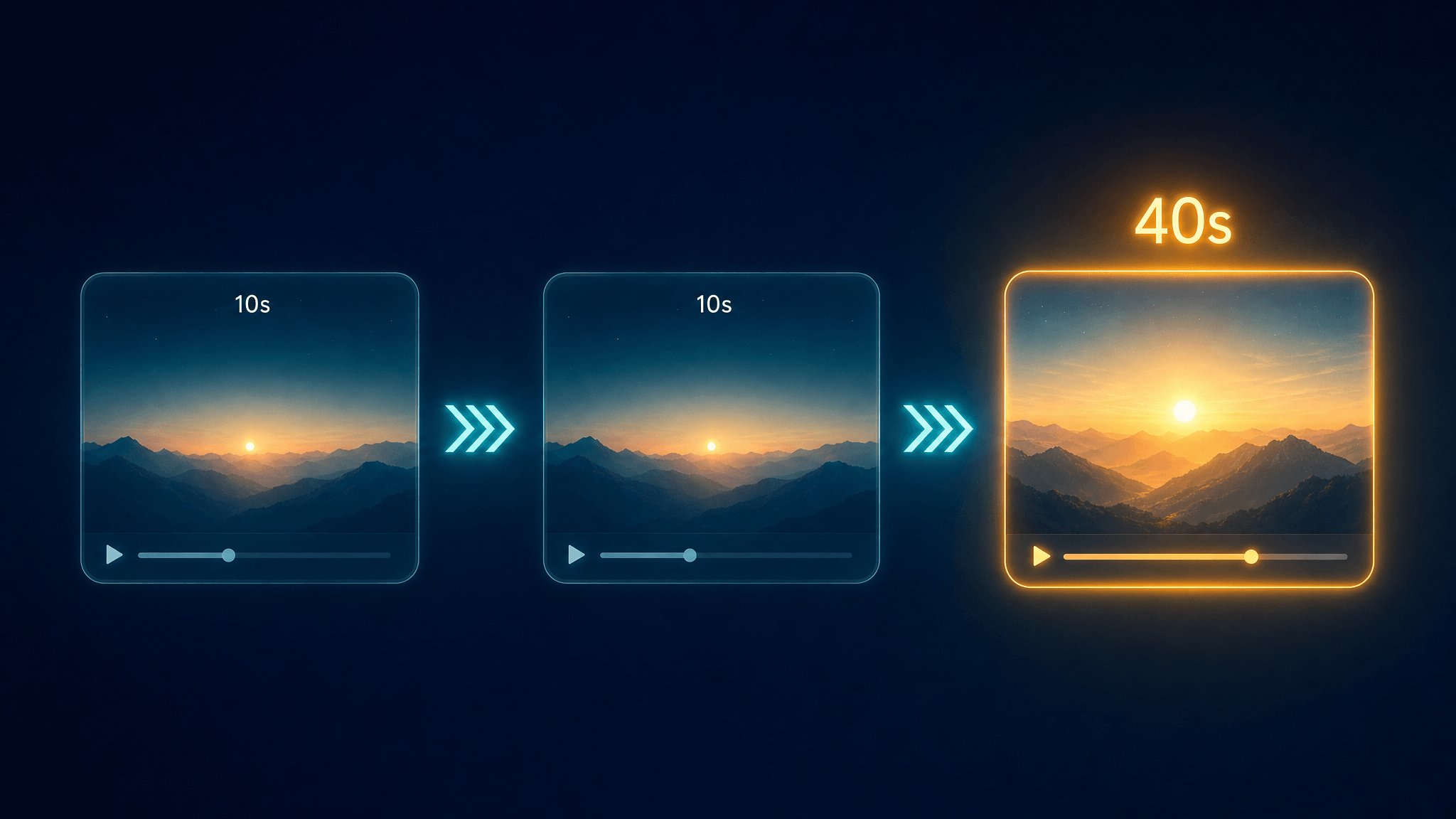
What it does. Scene extension continues a video from where it left off. Omni 1.1 reads the last 10 seconds of the clip for story, motion, character, and audio context — a big jump from the previous behavior of anchoring on just the final second — and generates a continuation of roughly 3–10 seconds per step. You keep extending in 10-second increments until you hit the 40-second cumulative ceiling. Note that the model re-edits a few of the input's final frames to make the join invisible, so treat the last moments of your source clip as negotiable.
How to do it as a creator. In the Gemini app, scene extension is available to Google AI Plus, Pro, and Ultra subscribers — you generate or upload a clip and ask the model to continue it. In Google Flow, Omni 1.1 is available to the same subscriber tiers with the full create-and-edit workflow. If you work through the Gemini API in AI Studio, extension runs by referencing the previous generation or uploading a clip (10 seconds maximum) and prompting the continuation.
The prompt pattern. Extension prompts read like directing notes. Google's documentation shows the shape:
Continue the scene. The camera pulls back to reveal the whole
market street. The music continues into the chorus. No dialogue.
Two rules from the official docs are worth internalizing. First, describe the audio — if you don't say the music continues or the dialogue stops, the model decides. Second, if you use timed beats like "after 3 seconds, cut to a new scene," the clock restarts at zero in the extended segment, not from the beginning of the whole video.
The gotchas. Extensions append to the end of a clip only — you can't insert a scene in the middle or prepend a new opening. Uploaded videos used as extension input must be 10 seconds or shorter, and extensions of uploaded clips can't add spoken dialogue (multi-turn extension of clips the model generated itself can). And if you're in the EEA, Switzerland, or the UK, extending uploaded videos isn't supported yet — model-generated extensions work everywhere the model is available.
Control 2: First/last-frame transitions without jump cuts
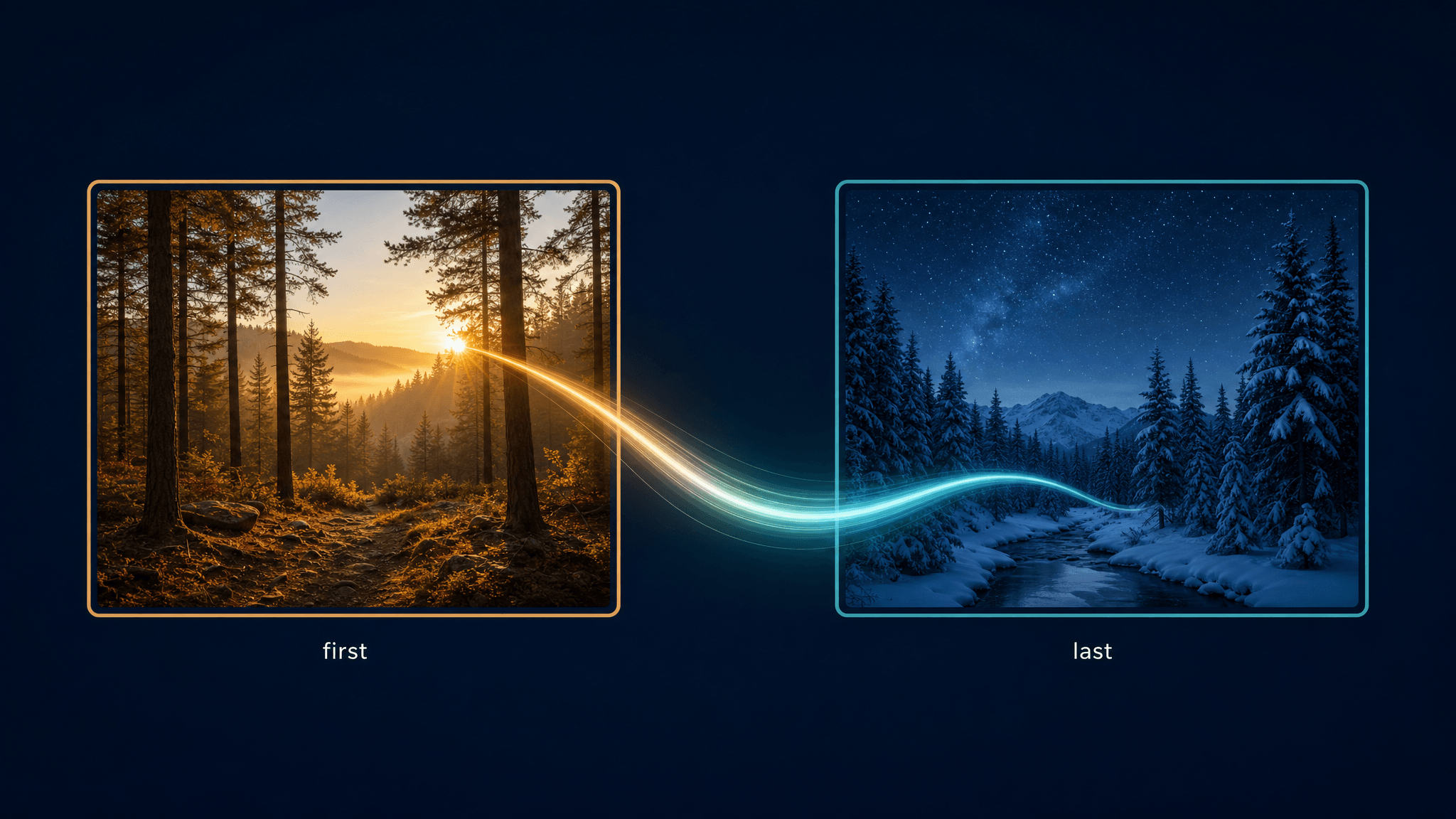
What it does. Hand the model a starting frame and an ending frame, describe the transition, and Omni 1.1 generates one continuous shot that moves between them. Google's announcement demos cover whip-pans into a new scene, camera orbits around a subject, and zoom transitions — the classic short-form moves that normally get faked with a hard cut or a warp transition.
The prompt pattern. In tools that expose media roles, you tag which image is which keyframe:
<FIRST_FRAME> <LAST_FRAME>
A fast whip-pan transition as the camera swings from the kitchen
to the rooftop party. One continuous shot, no jump cuts.
The docs also document a loop trick worth stealing: submit the same image as both the first and last frame, and the model generates a clip that ends where it started — a clean loop for background visuals, live-stream filler, or that satisfying boomerang effect.
Where this fits a creator workflow. Keyframe transitions solve the "AI clip A abruptly becomes AI clip B" problem. Generate a still of your hook moment and a still of your payoff moment (Nano Banana or any image tool works for the stills), then let 1.1 Flash animate the journey between them. The result reads as one authored shot instead of two stapled clips.
Control 3: Draft in 360p, finish in 4K
The resolution ladder in Omni 1.1 runs 360p → 720p (default) → 1080p → 4K, and the smart workflow uses both ends. Draft at 360p: Google's announcement says previews generate up to 60% faster than 720p at about a third of the cost, which is the difference between testing four variations of a shot and committing blind to one. Once a draft proves its motion and framing work, regenerate the winner at 1080p or 4K for the master.
For developers paying API rates, Google's pricing page pegs video output at roughly $0.10 per second of 720p video under standard pricing (billed as $17.50 per million video-output tokens at 5,792 tokens per second of video). That makes a 40-second extended piece cost a few dollars per full iteration — real money at draft volume, which is exactly why the 360p draft pass exists. Creators working in Flow or the Gemini app consume their plan's credits instead, and what's available varies by tier and region.
One professional-delivery note: every generated video carries an invisible SynthID watermark — viewers can't see it, but it can be detected programmatically. If your client work requires disclosure of AI provenance, the watermark works in your favor; either way, know it's there.
Prompt patterns that carry across all three controls
These rules from Google's prompting guide apply whether you're generating, extending, or transitioning:
- Ask for one shot if you want one shot. By default the model tries to build a multi-shot narrative. Phrases like "in a single uninterrupted scene," "one continuous shot," and "no scene cuts" hold it to a single take.
- Direct the audio explicitly. "Contains calm background music," "high-energy electronic beat," or simply "no dialogue" — the model generates an audio track by default, so undescribed audio is a gamble.
- Use timed beats sparingly and correctly. Natural language ("after 3 seconds, a woman enters") or timecode syntax (
[0-3s] walking, [3-6s] she turns) both work. Remember the extension-clock rule: time zero is the start of the new segment. - Kill unwanted elements inline. There's no negative-prompt field — fold negatives into the prompt: "no dialogue, no extra sound effects, no text overlays."
- Spell out on-screen text. The model renders text readably when you define the exact words, useful for captions, signage gags, or product labels inside the scene.
Limits to know before you plan a video
| Limit | What it means for you |
|---|---|
| Aspect ratios: 16:9, 9:16 | Vertical short-form is supported natively; square (1:1) is not. |
| Extension caps at 40s total | In 10-second steps from a base clip; each step adds roughly 3–10 seconds of new footage. |
| Extension appends to the end only | No mid-clip inserts, no new openings — structure your story forward. |
| Uploaded input ≤ 10 seconds | Longer uploads must be trimmed before extension (multi-turn model-generated clips are the exception). |
| No new dialogue on uploaded-clip extensions | Silent continuations only, unless the clip chain started from a model generation. |
| EEA / Switzerland / UK | Extending uploaded videos isn't supported; extending model-generated videos is. |
| English-first prompting | English is fully supported; other languages work but are officially unevaluated. |
| Safety filters + SynthID | Prompts and outputs pass regional safety filters; all output carries an invisible provenance watermark. |
Where each control lives
Google Flow's model lineup includes Gemini Omni for video creation and editing. Source: labs.google/fx/tools/flow, accessed August 30, 2026.
| Surface | What you get | Who can use it |
|---|---|---|
| Google Flow | Full Omni 1.1 create-and-edit workflow, the creator-facing home for these controls | Google AI Plus / Pro / Ultra subscribers; features vary by tier, platform, and region |
| Gemini app | Scene extension of videos created in Gemini | Google AI Plus / Pro / Ultra subscribers |
| Google AI Studio / Gemini API | Every control, including 4K output and video references | Developers on the paid API tier (GA, no free tier) |
Google names Adobe Firefly, Figma Weave, GMI Cloud, and Runway as partners already running Omni Flash in production — a signal that the model layer is settling into mainstream creative tools quickly, even if you never touch the API.
What this changes for short-video creators
The 10-second ceiling was the structural limit that kept AI clips in "snippet" territory: long enough for a joke, too short for a story. A 40-second runway with continuity-aware extension means one generation thread can carry a setup, a turn, and a payoff. Keyframe interpolation attacks the other tell — the jump cut between clips — by generating the connecting shot instead of editing around it. And the 360p-draft → 4K-finish loop makes iteration cheap without sacrificing the master.
The honest caveat: this is a documentation-based walkthrough of a model that shipped days ago, so treat the prompt patterns as starting points to adapt, not guaranteed recipes — output quality varies by scene, and generation time depends on duration, resolution, and load. Plan one extra iteration cycle into your first extended-piece attempt.
If your goal is fruit-style shorts — the watermelon-ASMR, dancing-strawberry genre that AI tools keep going viral on — and you'd rather skip per-shot prompt engineering entirely, that's the lane our own AI Fruit video generator occupies: template-driven generation with models like Veo 3.1 and Seedance 2.0, tuned for fruit trends. We've also written a dedicated guide to prompting fruit videos with the original Gemini Omni, and a side-by-side comparison of Gemini Omni and AI Fruit if you're deciding between the general model and a purpose-built tool.