
MiniMax H3 Timeline in ComfyUI: Install the Director Plugin and Storyboard Multi-Shot Videos
What MiniMax H3 timeline editors do in ComfyUI, how to install the MiniMax H3 Director plugin, and how to lay out tracks, per-shot prompts, and audio to storyboard multi-shot videos.

"MiniMax H3 timeline" refers to a small family of ComfyUI plugins — most prominently MiniMax H3 Director — that turn MiniMax H3's raw video nodes into a timeline editor: you drag shots, reference images, video and music onto tracks, write a prompt per shot, and the plugin compiles the exact storyboard prompt H3 was trained to read. This tutorial walks through installing the Director, loading its models, building your first timeline, and what honestly works for videos longer than 15 seconds — following the plugin's documentation and ComfyUI's official H3 guide rather than untested claims.
What a timeline editor actually changes
MiniMax H3 is MiniMax's open-weights omni-modal model: it understands text, image, video and audio in one context and generates video with native stereo audio — dialogue, sound effects and music in a single pass. The open weights target roughly 1 megapixel (768 px short edge) at 24 fps, with a trained range of about 5–15 seconds per clip.
Everything H3 can do is reachable in stock ComfyUI nodes. The problem is ergonomics: you address a multi-shot scene by hand-writing one long storyboard prompt, counting frames onto H3's 17k+5 frame grid, and wiring conditioning nodes for every reference image and audio clip. The Director replaces that with an editor — segments on a track become [Shot N] entries with timestamps, images become keyframes or <Picture i> references, and a live panel shows the compiled prompt before you spend a render on it.
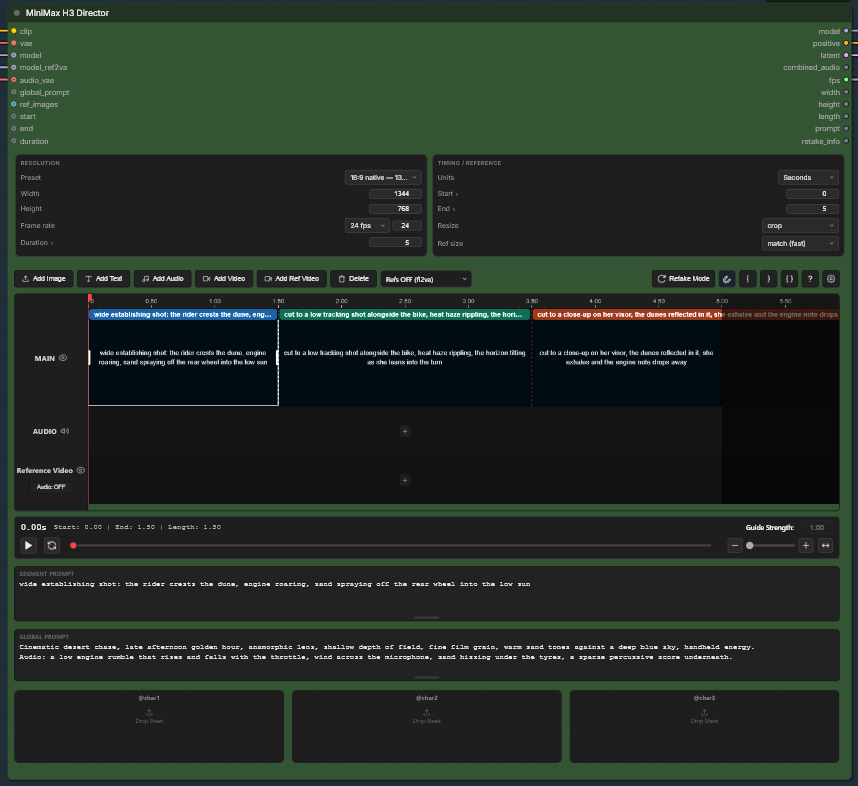
The Director node. Image: ComfyUI-MiniMaxH3-Director README on GitHub, accessed 2026-10-19.
The plugin ships five nodes under the MiniMax H3 category: the Director (the timeline itself), Preview Override (watch the whole shot denoise instead of one frozen frame), Retake Stitch (splices a regenerated range back into a base video), Enhance Prompt (a local vision model drafts the prompt from your reference images), and Save Last Frame (exports the last frame for chaining the next shot).
Requirements before you install
Check these first — the model downloads, not the plugin, are the real commitment:
- ComfyUI 0.30.0 or newer. H3 support and the packed audio-video latent landed in 0.30; older builds simply fail to load the nodes.
- Disk: budget about 60 GB. The fp8 diffusion checkpoints are ~21 GB each (two of them — more on that below), the text encoder is ~15 GB, and the two VAEs add ~5.5 GB.
- VRAM: 16 GB is workable at 480p–768p with ComfyUI's offloading, but expect heavy swapping below that.
- No extra pip packages. The plugin declares no third-party dependencies.
If that hardware bill changes your mind about local deployment, skip to the end of this article for the no-setup route.
Install the MiniMax H3 Director plugin
The plugin is ComfyUI-MiniMaxH3-Director on GitHub (GPL-3.0, ported from WhatDreamsCost's LTX Director). ComfyUI Wiki's overview covers the same ground if you want a second take.
Via ComfyUI Manager (recommended):
- Open Manager → Custom Nodes Manager.
- Search for MiniMax H3 Director.
- Install, then restart ComfyUI and hard-reload the browser (Ctrl+F5).
Not listed in your Manager yet? Use Manager → Install via Git URL and paste the repo URL, or clone it manually:
cd ComfyUI/custom_nodes
git clone https://github.com/seesee75-commits/ComfyUI-MiniMaxH3-Director
The hard reload matters: the timeline is a frontend extension, and a stale cached .js is the single most common "the node looks broken" report.
Download the models — and put them in the right folders
Download from Comfy-Org/MiniMax-H3 on Hugging Face (the example workflow also offers to fetch them). Files go directly into these folders — a file nested in a subfolder will not match the workflow:
| Folder | File | Size |
|---|---|---|
diffusion_models/ |
minimax_h3_fl2va_pruned_fp8_scaled.safetensors |
21 GB |
diffusion_models/ |
minimax_h3_ref2va_pruned_fp8_scaled.safetensors |
21 GB |
text_encoders/ |
qwen3vl_32b_minimax_h3_nvfp4_awq.safetensors |
15 GB |
vae/ |
minimax_h3_video_vae_fp16.safetensors |
4.9 GB |
vae/ |
minimax_h3_audio_vae_fp32.safetensors |
0.6 GB |
The two diffusion checkpoints are not interchangeable — they are separate trainings. fl2va drives text-to-video and first/last keyframes (Refs OFF); ref2va drives reference conditioning (Refs ON). Connect both to the Director's two model inputs and the toolbar switch picks the right one; the loaders are lazy, so only the selected checkpoint is ever read from disk.
Build your first timeline
- Open the bundled graph: Workflow → Open →
example_workflows/MiniMax H3 Director.json, or drag the repo's workflow-overview image onto the canvas. - Fix any red nodes — usually the model dropdowns if your filenames differ.
- Double-click a segment on the main track and type what should happen in that shot.
- Optionally drag an image onto the track as a first-frame anchor.
- Run.
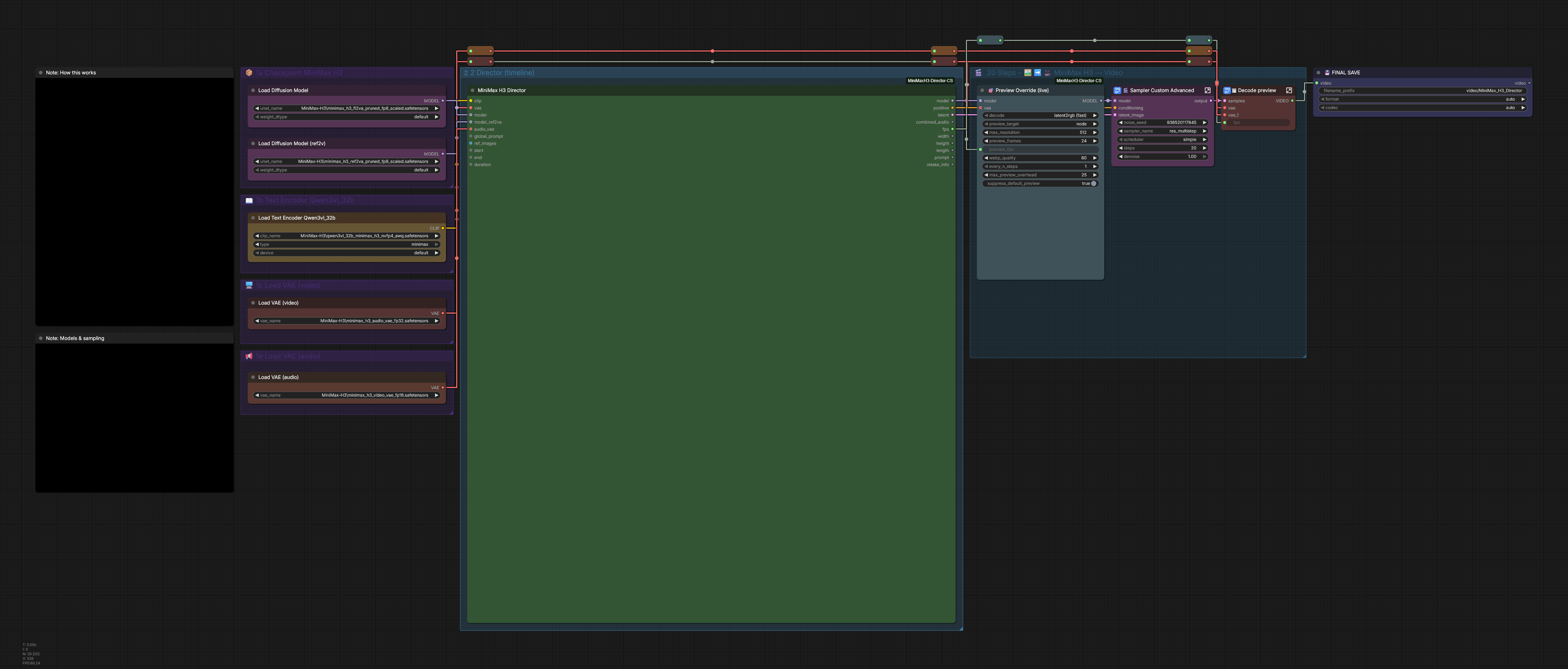
The bundled example workflow. Image: ComfyUI-MiniMaxH3-Director README on GitHub, accessed 2026-10-19.
Before running, read the COMPILED PROMPT panel under the timeline: it shows the exact text the model will receive, plus shot count, frame count, reference tally and warnings. MiniMax's own guide suggests 350–500 words for generation prompts — more than most people write — though the plugin itself treats that as a figure, not a verdict.
Things worth knowing as you edit:
- Per-shot dialogue: a line starting with a reference tag and containing a colon becomes spoken dialogue —
@ref1 says: First batch of the morning.compiles to a speaker-tagged line the model was trained on. Quotes without the colon stay narration. - Subject slots: drop character/prop/style images into
@ref1–@ref9slots, give each a kind and a retention marker (fully_preserved→weak_reference) to say how closely the model must follow it. Model-card limits: 9 images, 3 reference videos (2–15 s each), 3 audio clips, 12 files total. - Audio use: right-click an audio clip to choose
reference(model imitates the voice/style),fully_copy/partially_copy(your audio lands in the video), orlock (exact audio)— the reliable way to keep your soundtrack, held in the model's audio stream while the video generates around it. - Resolution: presets cover every H3 aspect ratio at two size tiers. Stay at the "Fast" 480 px tier for drafts; 16:9 native quality is 1344×768. Don't chase 1.0 MP — 1376×768 exceeds H3's 768×1344 canvas cap, and oversizing adds render time, not detail.
- Sampler defaults: the graph uses
res_multistep+simplearound 20 steps throughBasicGuider. KeepCLIPLoadertype set to minimax — anything else produces garbage output.
Videos longer than 15 seconds — the honest state
H3's 4–15 second envelope is the range it was trained on, not a hard cap the plugins enforce. Longer windows do render — the Director's author reports success at ~45 s — but past the envelope expect drift, looping, and a render time that climbs faster than the video does.
The Director itself does not yet ship a long-timeline feature: a Director Chain node was withdrawn rather than released half-usable. The dependable documented paths are:
- Chain in-range shots. End each shot with the Save Last Frame node, then feed that frame into an image-to-video continuation of the next shot (ComfyUI's
video_minimax_h3_i2v_continuationtemplate). Official guidance is blunt: errors compound across the chain — faces lose texture first — so prefer short continuous shots and cut before artifacts show; the H3 guide suggests an anti-burn LoRA at ~0.5 strength on clips after the first. - Retake instead of re-roll. Retake Mode regenerates only a marked range of a rendered video, anchored by the frames on either side of the range, and Retake Stitch splices it back in — so one bad middle shot doesn't force a full re-render.
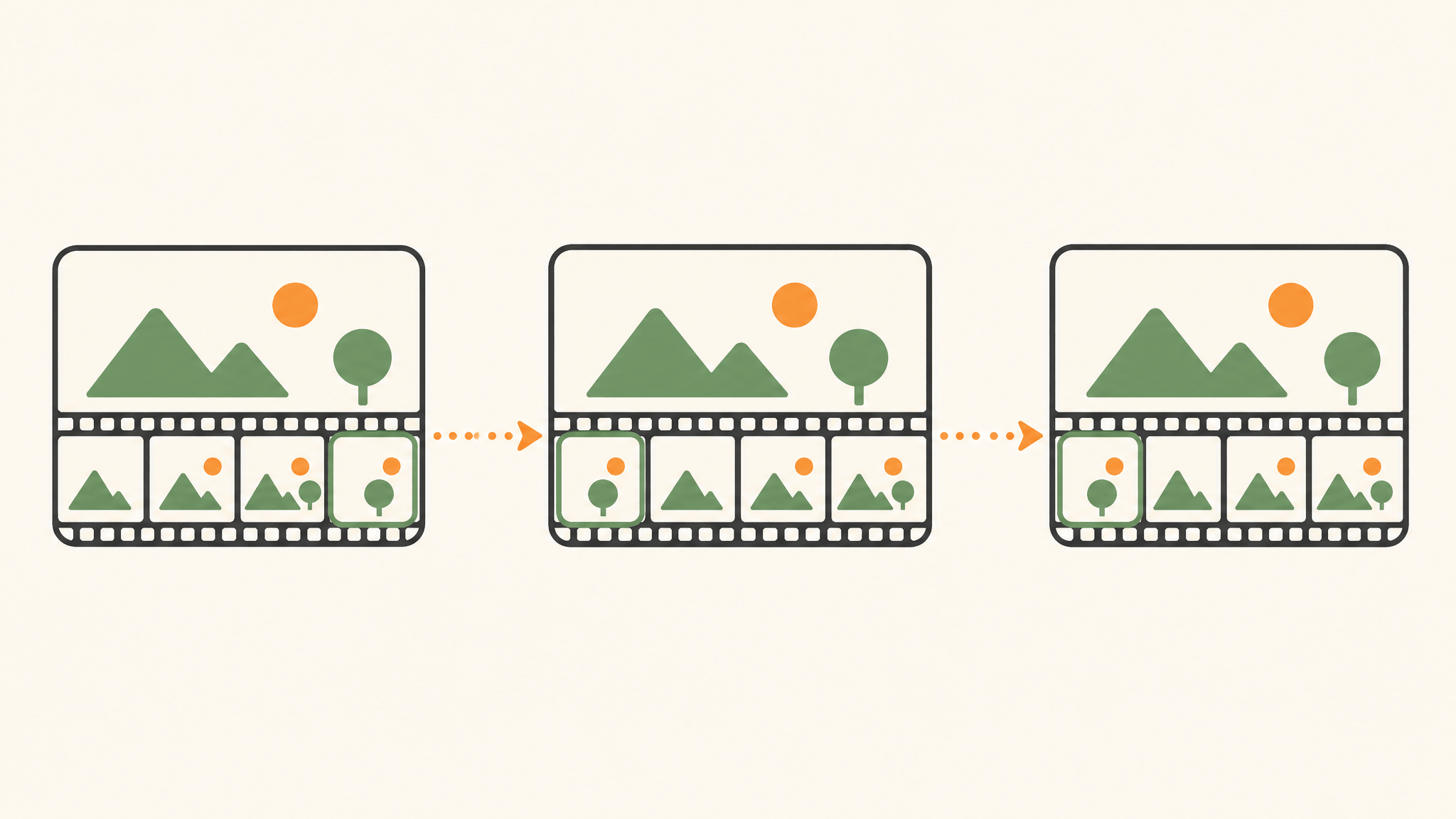
If long-form is your main goal, it's also fair to look beyond the Director: ComfyUI-MiniMaxH3-TimelineDirector splits any target duration into continuous segments generated in one run, carrying each segment forward from the previous latent tail; its README presents the approach as unlimited in length, bounded only by your hardware. MiniMaxDirector takes a different angle: it compiles shots, camera moves and audio cues into the structured prompt, with one "WHO & WHAT" card per subject. The Director remains this tutorial's main subject because it's the one both community guides cover in depth, and its documentation of its own limits is unusually honest.
Five failures you'll probably hit (and their fixes)
- Nodes missing after install → full restart plus Ctrl+F5; a stale frontend cache is the most common cause.
ERROR: clip input is invalid/ garbage output →CLIPLoadertype must beminimax.- Video is noise but audio is fine → the joint latent is wired to the wrong VAE; video VAE to
VAEDecode, audio VAE toVAEDecodeAudio. - Flat, featureless grey video → the video VAE produced NaN; start ComfyUI with
--fp32-vae. - Out of memory → lower resolution first, then length; drop reference-video size (384 px costs about a quarter of 768) before cutting references.
The licensing fine print
H3's open weights are free to download and run, but commercial use of locally generated output requires a MiniMax commercial license, sold through Comfy as the only official reseller. Outside the US, EU, UK and Korea, under $20M yearly revenue, a free community license covers commercial use with a "Powered by MiniMax H3" credit. Inside those territories or above that revenue, the Professional tier starts at $5,000 per month. ComfyUI's guide has the full matrix.
Wrap-up
The MiniMax H3 timeline plugins solve a real problem: H3's joint audio-video generation and reference system become editable tracks instead of a hand-written prompt and a frame-counting exercise. For creators who already run ComfyUI on a capable GPU, the Director is a couple of hours of setup away from a working storyboard pipeline — and the honest limitations (5–15 s trained range, compounding errors on long chains, a real commercial license for local business use) are worth knowing before you commit disk space.
If you'd rather skip the local deployment entirely — no 60 GB of downloads, no VRAM math, no Ctrl+F5 debugging — AI Fruit's online video generator runs the same create-evaluate-iterate loop in the browser, with model choices and credit costs visible before you generate. To be clear about the boundary: AI Fruit doesn't host MiniMax H3 or a timeline editor; it's the no-setup route for generating short videos online, including multi-scene story workflows if that's the shape of video you're building toward.