
How to Make AI Fruit Story Videos: The Scene-by-Scene Tutorial
The full AI Fruit Story workflow — brief, free planning, per-scene costs from 18 credits, export, and TikTok posting. Costs and steps verified September 26, 2026.
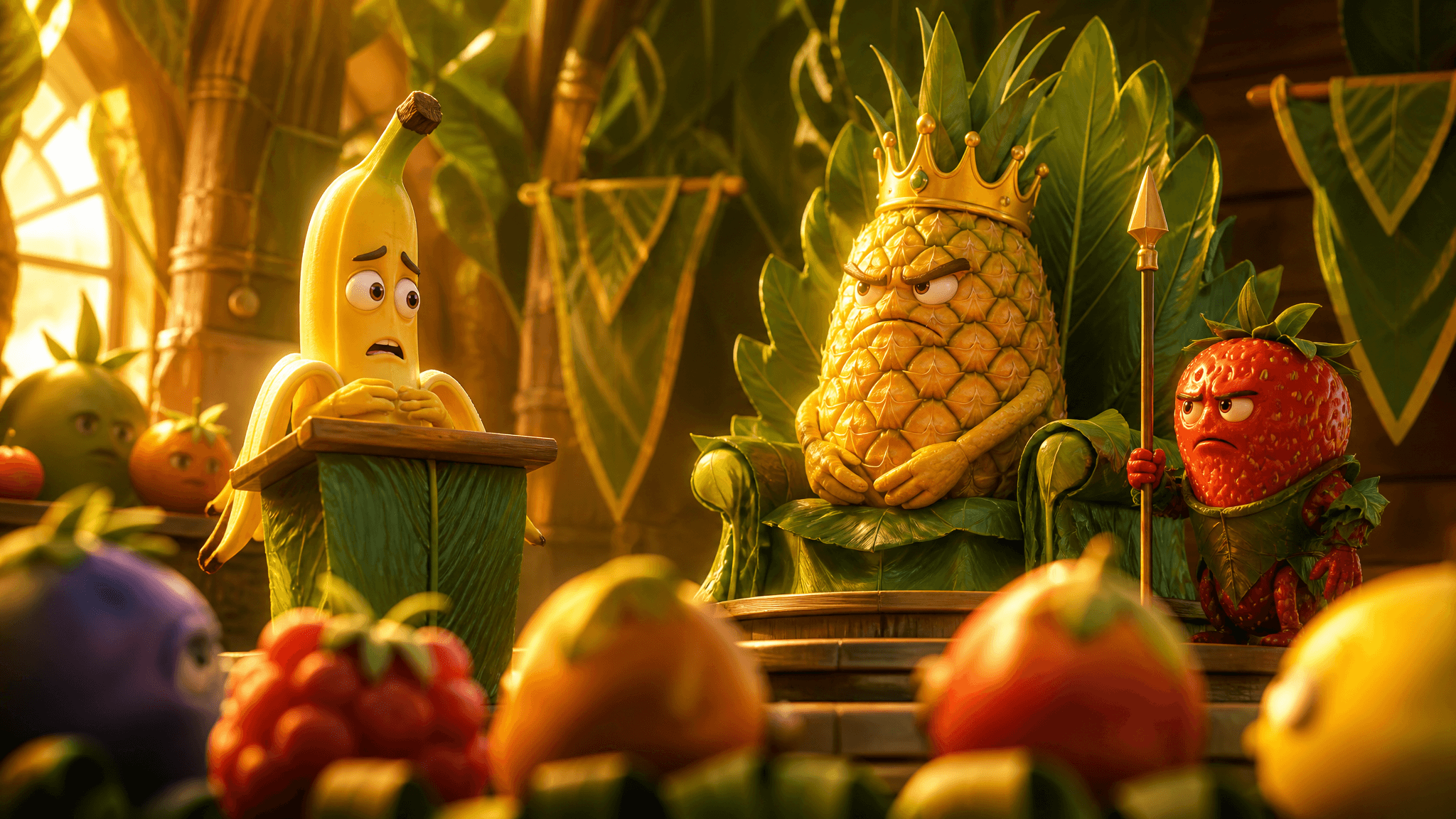
You've watched a strawberry news anchor report on a grape fouling out a soccer match, or a banana page caught stealing King Pineapple's crown — and you want to make your own fruit drama, not just one clip. The good news: AI Fruit has a dedicated Story workflow that takes you from a one-paragraph premise to a finished, exportable multi-scene episode. The better news: planning the story is free, and you only pay when you actually generate a scene.
Here's the whole loop for making AI fruit story videos: pick an episode premise → optionally cast characters → write the brief → let AI plan the scenes (free) → generate the scenes you approve → preview them in order → export one video → post it to TikTok. A three-scene episode on the default model costs about 54 credits (3 scenes × 18 credits for a 6-second Grok Imagine Video clip at 720p), and the app shows you the exact estimate before you spend anything.
All steps, prices, and screens below were verified in the live product on September 26, 2026. We walked the workflow up to the credit-spending step without generating scenes for this guide, so treat the generation step itself as model-dependent — no two runs look identical.
What you need before you start
- An AI Fruit account with credits. Sign-up includes starter credits, and there's a small daily reward you can claim in the app (2 free credits the day we checked). Everything before scene generation — planning included — costs nothing.
- A rough episode idea. One conflict, one payoff. You don't need a script; the planner turns your brief into scene-by-scene instructions.
- Characters, if you want a recurring cast. Character selection happens inside the authenticated app. It's optional — stories work without a saved cast too.
- One decision up front: the whole project shares a single video model, resolution, and aspect ratio. Pick them with your episode budget in mind, because every scene bills at that model's rate.
Step 1: Pick a premise that fits 3–6 scenes
A fruit story works when one visible event carries the episode: a betrayal, a rescue, a rivalry, a confession. If you can describe the beginning, the turning point, and the ending in two or three sentences, you have a premise.
Story projects support 3, 4, or 6 scenes, so scale the drama to the format:
- 3 scenes — setup, conflict, punchline. Best for a first episode or a joke that lands fast.
- 4 scenes — the default. Room for a small twist.
- 6 scenes — a real mini-arc: rivalry builds, scheme backfires, reconciliation.
Short on ideas? The public generator ships six story templates — Apple vs Orange Drama, Banana Superhero Rescue, Orange vs Lemon Rivalry, Strawberry Love Story, Cherry Twins Adventure, Pineapple King Speech — and any of them makes a solid skeleton you can rewrite into your own premise.
Step 2: Set up your cast (optional, but worth it for series)
If your story has named characters — and fruit drama usually does — create them in the Character library before you write the brief: upload a reference image, give each character a name and a short description, and they become a reusable cast.
Two things the Character system does for you:
- Story snapshots. When a story uses your characters, the project stores its own frozen copy of each one. Later edits to your library don't silently change episodes you've already built, and removing a character from a story never deletes the original.
- Scene references. Each scene can be linked to its cast members, and those references are resolved server-side before generation. If a model can't handle the number of reference images you've selected, the app tells you before it charges you — not after.
For continuity across episodes, keep the same cast, the same description details, and generate a keyframe for each scene (more on that in Step 5).
Step 3: Write the brief — planning is free
Open the AI Fruit Story generator and choose Build a Multi-Scene Story (sign in first — character selection requires an account). The brief form asks for one thing: describe the whole story, including the beginning, turning point, and ending you want. A royal-court whodunit, a breakup in the rain, a heist in the fruit bowl — two or three sentences is enough.
Then set the episode frame:
- Scene count: 3, 4, or 6.
- Aspect ratio: 9:16 by default, which is already TikTok-ready; 16:9 and 1:1 are there if you want them.
- Model: "Auto" resolves to Grok Imagine Video, the cheapest per-second option at 3 credits per second at 720p.
The form shows a live estimate — when we drafted a 4-scene test story, it displayed "Estimated video cost: 72 credits for 4 scenes" — and states plainly: planning is free, credits are charged per generated scene. Hit Draft storyboard and the AI plans every scene; you haven't spent a credit yet.
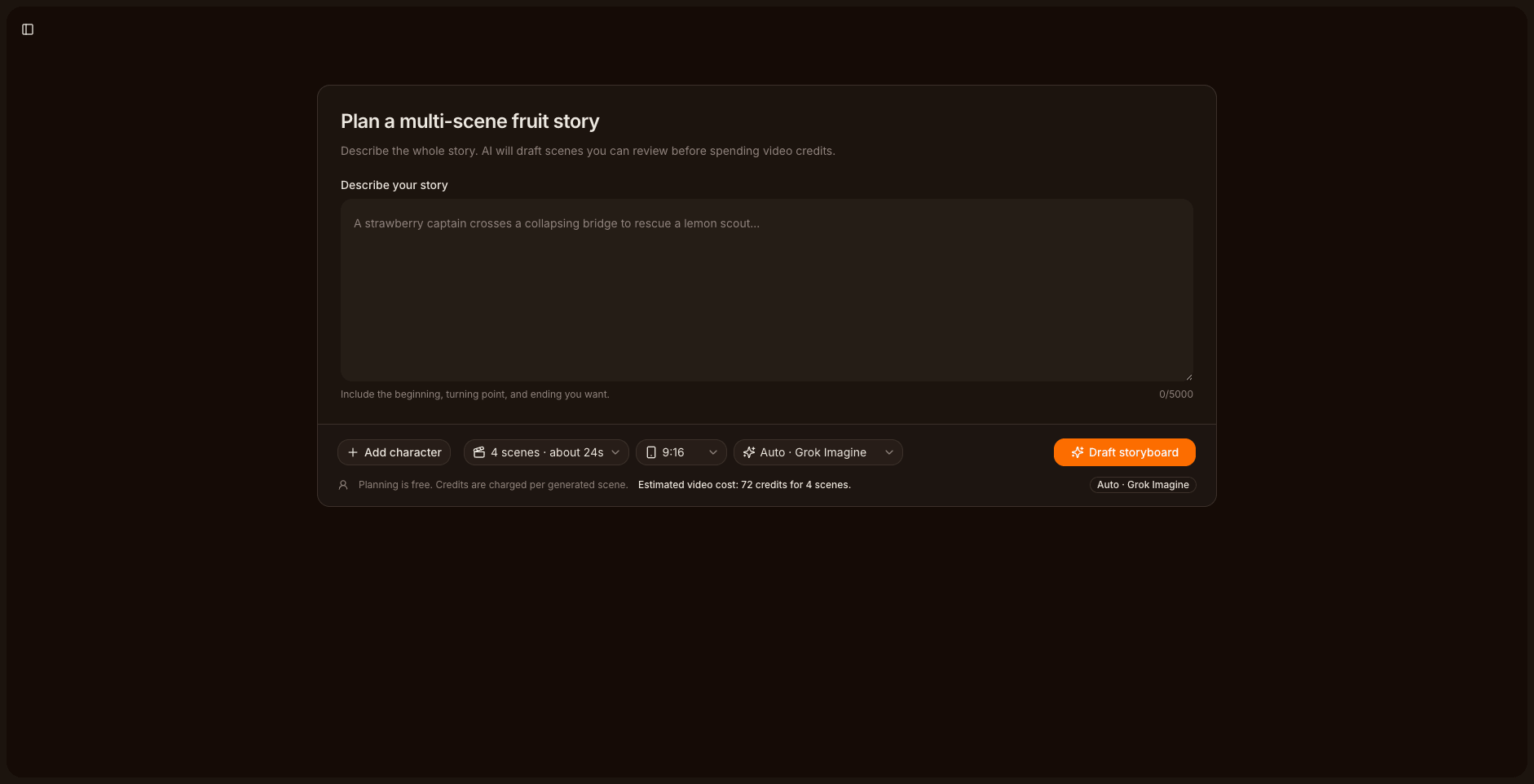
The story brief form. Planning is free — the credit estimate updates before you commit anything. Checked 2026-09-26.
Step 4: Review the AI's scene plan
The planner reads your brief and returns one card per scene with a title, a primary visible action, optional dialogue, and a duration that fits the model's limits. Your job is to be a director, not a copywriter:
- One action per scene. If a card crams two events together, split it or cut it.
- Watch the duration math. Dialogue budgets roughly two English words per second, and each scene reserves time for the establishing frame. If a card's action plus dialogue can't fit, either simplify it or plan for a longer duration.
- Reorder for the payoff. The preview plays scenes in order, so make sure scene 1 earns the scroll-stop.
Planning can fail — during our check, one attempt returned "Storyboard planning failed: Invalid JSON response." That's recoverable, not fatal: the workspace keeps your brief and offers a Draft storyboard retry, and a failed plan costs nothing.
Step 5: Generate scenes — with the cost window open
This is the only step that spends credits, and the editor shows the price of every action before you click it:
- Each scene displays its own estimated cost before generation, based on the project's model, resolution, and the scene's duration.
- The timing advisor protects you from yourself: if a scene is too dense for its selected duration, the editor warns that generation "will automatically use 9s unless you simplify the action or dialogue" — and the estimate updates accordingly. We watched a dense 6-second Grok scene reprice from 18 to 27 credits for exactly this reason.
- Keyframes cost extra (4 credits each when we checked) and are worth it for series: a generated keyframe locks the character's identity, framing, and environment before video generation.
- Versions. Every generation adds a version to the scene. You pick the chosen result per scene — and re-rolling a scene only bills that scene, not the episode.
Credit rates per scene are duration × the model's per-second rate. Rates we verified on September 26, 2026 — adding a reference image or audio can shift a model's rate, and the editor always shows the final estimate before you click:
| Model | Rate | 6-second scene |
|---|---|---|
| Grok Imagine Video | 3 credits/s (720p/480p) | 18 |
| Wan 2.6 | 12/s @720p · 18/s @1080p | 72–108 |
| Kling 3.0 | 12–23/s depending on resolution and audio | 72–138 |
| Happyhorse 1.1 | 24/s @720p · 30/s @1080p | 144–180 |
| Seedance 2.0 | 16/s @480p · 35/s @720p | 96–210 |
| Veo 3.1 | fixed | 224 |
When you're happy with individual scenes, the generate-remaining-scenes action estimates the total for everything left, checks your balance, and starts the eligible scenes in story order — it won't blindly regenerate scenes that are done or already running. If your balance falls short, the top-up flow opens right there and returns you to the story when you're done.
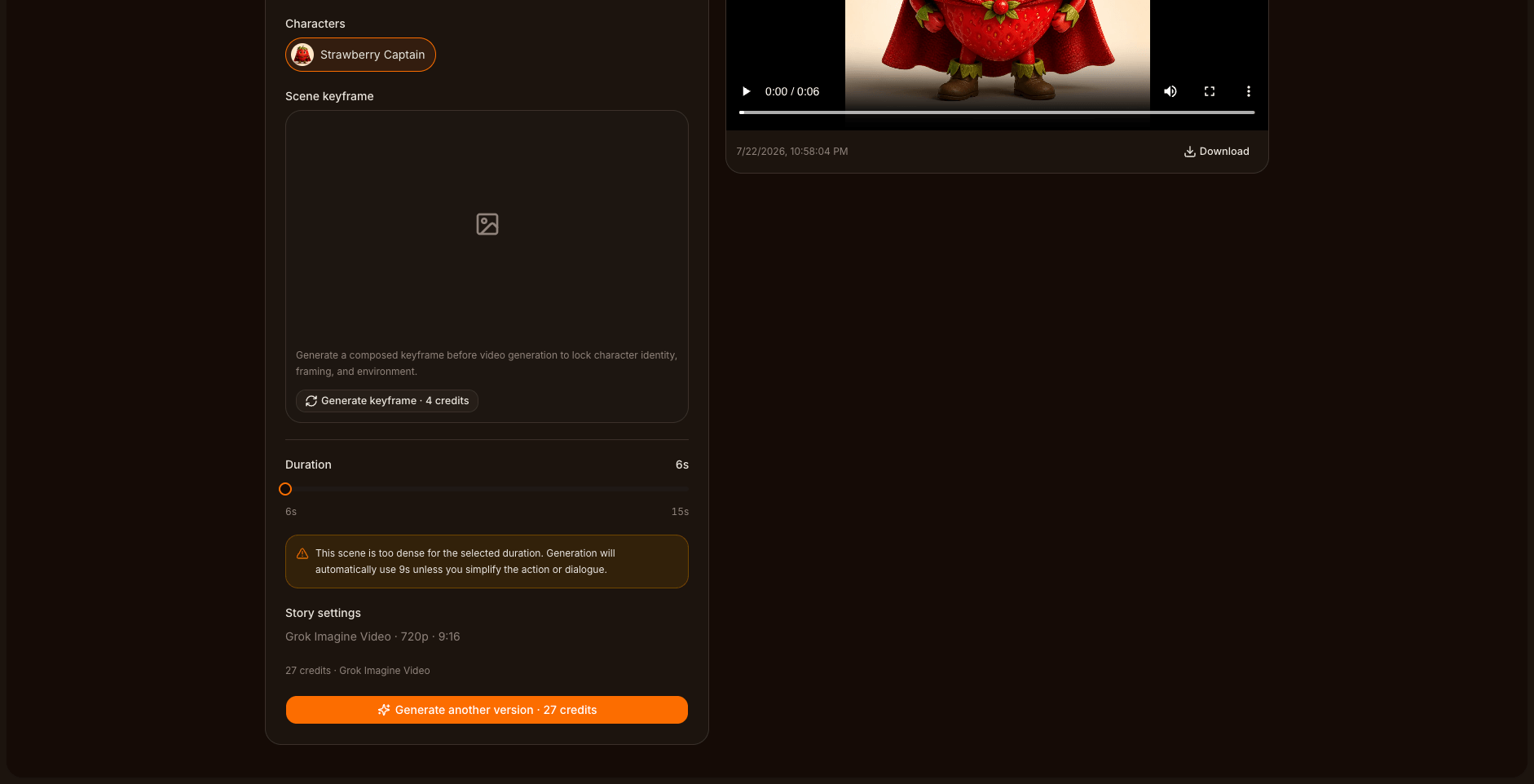
Every action is priced before you click: this timing-adjusted scene showed a 27-credit estimate and a 4-credit keyframe option. Checked 2026-09-26.
Step 6: Preview and export the episode
The Preview tab plays each scene's chosen result in order, so you can watch the episode as your audience will. Two exits from here:
- Download story — queues an export that stitches your chosen scene results into one video. The export runs on its own queue with its own progress and failure states, independent of generation.
- Download scene — grabs individual clips, if you'd rather edit or re-sequence elsewhere.
One honest boundary: Story is a planning-and-generation workspace, not a timeline editor. There are no transitions, captions, or audio mixing — the export is exactly your chosen results, played in order. If you need cuts or captions, download the scenes and finish in a standard editor.
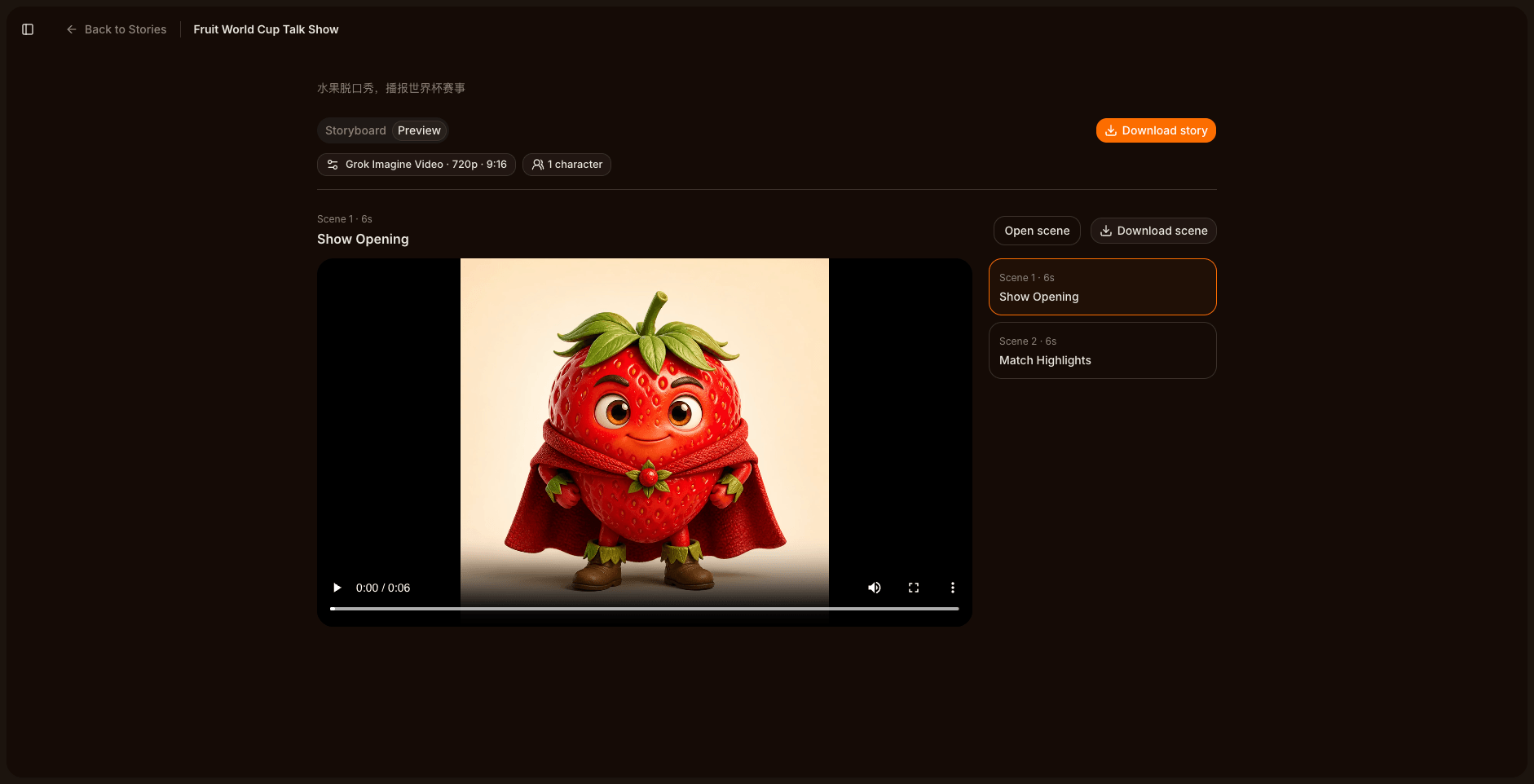
The Preview tab plays chosen results in order; Download story queues the export. Checked 2026-09-26.
Step 7: Post it to TikTok
Your export is already 9:16 vertical, so posting is mechanical:
- Length does the targeting for you. A 3-scene episode at 6 seconds each is ~18 seconds; 4 scenes is ~24. Both sit in the range TikTok's feed handles comfortably, and tighter clips survive replays.
- Scene 1 is the hook. The planner's establishing frame is your thumbnail in motion — make sure the conflict is visible before the first second ends.
- Series reward repeat viewers. Reuse the same cast and keyframe discipline across episodes, and say the series name out loud in scene 1 so new viewers know there's a backlog.
- Mind the seams. AI Fruit documents this honestly: the story workspace preserves characters, context, and versions, but doesn't guarantee frame-perfect consistency between independently generated clips. Three cheap fixes: repeat each character's defining details in the scene descriptions, use keyframes to lock identity and framing, and keep only one chosen result per scene so the episode stays coherent.
What an episode actually costs
Estimates below use the 6-second default scenes and rates checked September 26, 2026 (they can change with model availability and settings):
| Episode | Grok Imagine (720p) | Wan 2.6 (720p) |
|---|---|---|
| 3 scenes | ~54 credits | ~216 credits |
| 4 scenes | ~72 credits | ~288 credits |
| 6 scenes | ~108 credits | ~432 credits |
Add 4 credits per keyframe if you're locking a recurring cast, and expect to spend extra on re-rolls — versions are per-scene, so a discarded take only costs that one scene. That's the real answer to "how do people make those AI fruit videos": a free plan, a per-scene price tag shown before you click, and an episode you can export and post the same evening.
The loop is short enough to run weekly: premise → brief → free plan → generate the scenes worth keeping → export → post. And when you're ready to push quality further, the Seedance 2.1 Pro prompt library, the TikTok fruit ASMR tutorial, and our guide to avoiding the AI-generated look all build on the same workflow.