AI Car Video Kaise Banaye: Make the Trending Car Driving Clip

The trend: cinematic AI-generated clips of luxury cars cruising coastal highways and neon streets, posted to Reels and Shorts. Describe your scene below — or upload a car photo in the main generator — pick a model, check the credits, and generate your own driving clip.

Create with AI Car Video Kaise Banaye

Start from a template

Pick an idea, then make it yours.

Upload a reference image for your fruit video
Be specific about motion, framing, lighting and atmosphere.236 / 2000
s
Sign in to see creditsGet More Credits
Your Fruit Video
Restored

Ready for your first video

Choose a template or write a prompt. Your preview and download controls will appear here.

Grok Imagine Video6720p2:318 credits
CurrentModel Catalog
Model-specificResolution
AsynchronousGeneration
Review TermsCommercial Use

What Is the Car Driving AI Video Trend?

Short, cinematic clips of luxury cars — Mercedes-style sedans gliding down coastal highways, headlights sweeping through night traffic — are circulating across Instagram Reels and YouTube Shorts. AI video trend tracking logged the format as "kaise banaye" (Hindi for "how to make"): eight authors posting these clips reached roughly 1.13 million combined views, and Hindi-language tutorials teaching the workflow have been surfacing at the top of search results this week.

The circulating tutorials teach the same core: write a detailed scene prompt — the car, the road, the light, the camera move — and let an AI video generator render it; some add a photo so the model can place your own car into the scene. This page gives you that kaise banaye workflow on a live generator: copy-ready prompts below, model choices with credit costs visible before you spend, and a vertical 9:16 output sized for Reels and Shorts.

What you need before you generate

A scene prompt — or a car photo
Three details carry the format: the car, the setting and time of day, and the camera move. Copy one of the prompts below and edit the details, or start from a photo of your own car.
A model choice
The editor on this page defaults to grok-imagine-video; the main generator exposes the full model catalog with per-model duration and resolution options.
A credit budget
Cost depends on the model, resolution, and duration you pick. The estimated credits appear before you generate — nothing is spent blind.
A 9:16 target
Reels and Shorts are vertical. Pick 9:16 where the model offers aspect options so the clip fills the screen without cropping.

Three Ways to Make Your Car Driving AI Video

All three routes end in the same place: a downloadable vertical clip. Start from whichever matches what you already have.

Prompt the Scene

Type the driving scene in plain language — the car, the highway or city street, the light, and the camera move — and the editor renders it. Specificity is what separates the trending clips from the rest — the core of the kaise banaye method.

  • Natural-language scene prompts
  • Camera keywords like tracking shot and push-in
  • Time-of-day and weather control
  • Aspect options from the selected model

Start From Your Own Car Photo

Open the main generator, upload a photo of your car, and run it through an image-to-video model — the catalog models accept an image input. The model animates your car into a driving scene; how faithfully motion and surroundings follow depends on the model and the photo.

  • Image-to-video across the model catalog
  • Keeps your actual car as the subject
  • Works best with a clean, well-lit photo
  • Motion and scene detail vary by model

Rework a Proven Prompt

Every example below discloses the exact prompt that produced it. Copy one, swap the car color, road, or time of day, and regenerate — the fastest route to a clip that matches the trend's look.

  • Copy-paste starting points
  • One-variable edits per iteration
  • Scene, light, and camera patterns from the trend
  • Reuse the same prompt across models to compare output

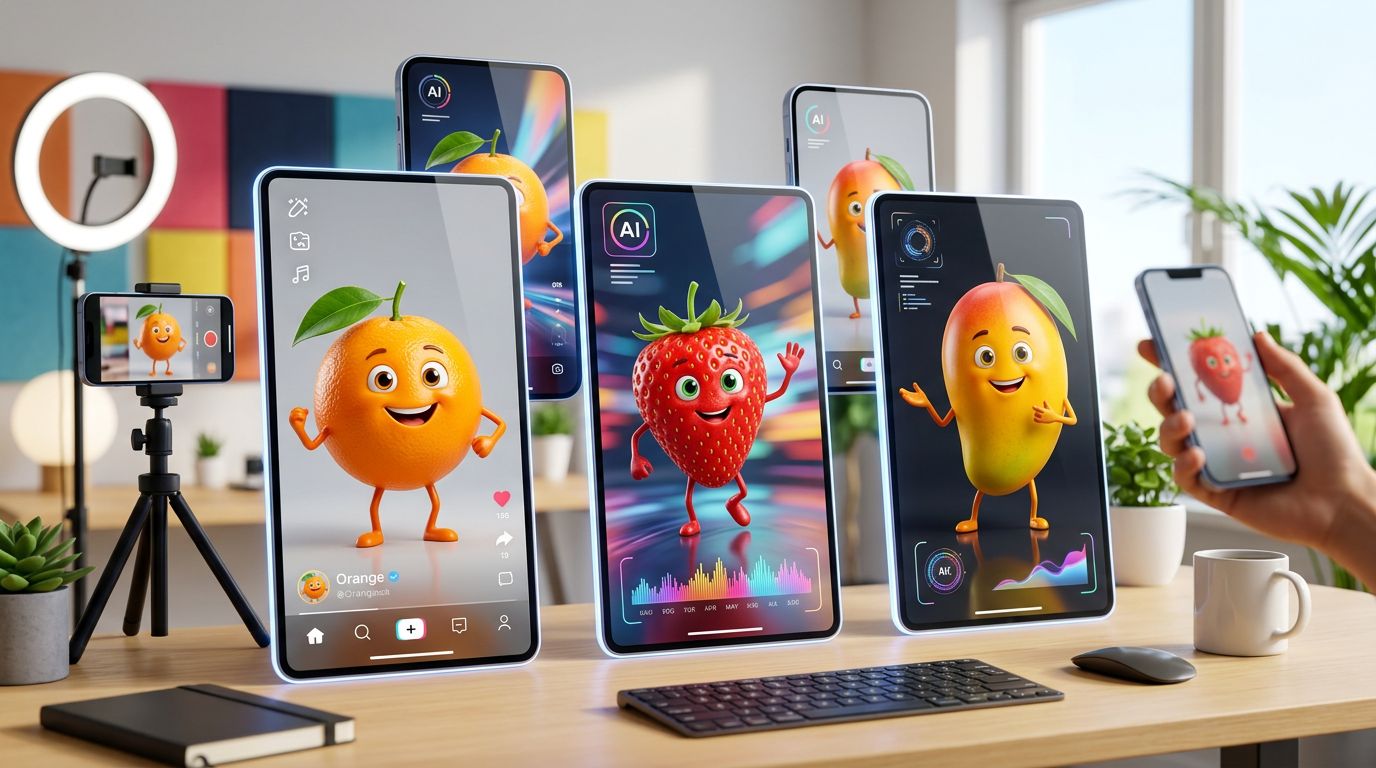
Why Use AI Fruit for the Car Driving Trend

Prompts Included, Not Just Explained

Tutorial videos make you pause and transcribe prompts. Here the working prompts sit next to the editor — copy, edit, generate your kaise banaye clip.

Models and Costs Visible Upfront

Pick from the current model catalog and see the estimated credit cost before generating. Resolution and duration trade-offs are on the surface, not buried.

Vertical Output for Reels and Shorts

Generate in 9:16 so the clip posts as-is — no cropping and no third-party editor between generation and upload.

Original Footage, Your Take

AI Fruit renders original footage from your prompt — your version of the trend, not a re-upload of someone else's viral clip. Output behavior is model-specific.

How to Make an AI Car Driving Video in Four Steps

1

Describe the Scene — or Upload a Photo

In the editor below, write the driving scene: "a black luxury sedan on a coastal highway at golden hour, camera tracking alongside". For the photo route, open the main generator and upload your car picture with an image-to-video model.

2

Pick a Model and Check the Credits

The editor defaults to grok-imagine-video; the main generator lists the full catalog with per-model duration and resolution options. The estimated credit cost appears before you generate.

3

Generate and Review

Generation runs asynchronously — the clip lands in your results when it's ready. Review the motion, the car, and the lighting; short clips reveal flaws fast.

4

Download or Iterate

Download the clip and post it, or change one variable — the road, the light, the camera move — and regenerate. Small edits per run beat full rewrites.

Car Driving AI Video Examples

Five generated takes on the format. Each description discloses the exact prompt behind the clip — copy it and make it yours.

Coastal Highway at Golden Hour

Prompt: A black luxury sedan drives along a winding coastal highway at golden hour, camera tracking alongside the car, ocean and cliffs in the background, warm sunlight flares across the windshield, cinematic photorealistic look, vertical video

▶

Neon City Night Drive

Prompt: A silver sports coupe moves through a neon-lit city street at night, rain-slicked asphalt reflecting pink and blue signs, slow camera following from behind, cinematic bokeh, moody atmosphere, vertical video

▶

Mountain Road Orbit

Prompt: A white luxury SUV cruises a mountain highway at dawn, drone-style camera orbiting slowly around the car, mist in the valleys below, crisp morning light, cinematic photorealistic look, vertical video

▶

Tunnel Night Run

Prompt: A dark grey luxury sedan speeds through an illuminated highway tunnel at night, camera racing alongside the car, light streaks along the tunnel walls, motion blur, headlights cutting through, cinematic photorealistic look, vertical video

▶

Old Town Classic Drive

Prompt: A vintage-style classic car drives through narrow European old-town streets at dusk, rear three-quarter tracking shot, warm street lamps switching on, cobblestone reflections, cinematic photorealistic look, vertical video

▶

Car Driving AI Video — FAQ

Three steps: write a detailed driving scene — car, road, light, camera move — pick a model in the editor below or the main generator, and generate. The estimated credit cost shows before you start, and the finished clip downloads ready to post on Reels or Shorts. The prompts in the examples above are copy-ready starting points.

Yes. The video models in AI Fruit's catalog accept an image input: upload your car photo in the main generator and an image-to-video model animates it into a driving scene. How faithfully the motion and surroundings follow depends on the model and the photo.

Generation is credit-based. Cost depends on the model, resolution, and duration you pick, and the estimated credits appear before you generate — see the pricing page for current credit packs.

Ready to Generate Your Car Driving Video?

Car driving AI video kaise banaye? Copy a prompt or bring your car photo — pick a model, check the credits, and make your version of the trend.

Open the AI Video Generator