
Suno v6 for Short-Form Video: Turn Your AI Visuals into a Soundtrack
Suno v6 turns images, videos, and voice memos into music. Here's how short-form creators can build a visuals-first pipeline that ends with a soundtrack matched to the clip.

You can generate a polished AI short video in minutes now — but the clip alone doesn't get posted. It needs music that fits what's on screen, and stock libraries rarely match a strawberry-eating-watermelon fever dream. That mismatch is the problem Suno's new release speaks to directly: Suno v6, announced September 9, 2026, can turn images, videos, and voice memos into music — which means the soundtrack can now start from the same visuals you just generated.
This guide walks the full visuals-first loop for short-form creators: finish your video, hand it (or a voice memo describing it) to Suno v6, pick the right model from the v6 family, refine the result without starting over, and sync the two together. Everything here is based on Suno's official announcement and release notes plus its own launch post — not on hands-on benchmarking, so treat the workflow as a documented blueprint rather than a tested tutorial.
Key takeaways
- Suno v6 accepts text, audio, images, and video as creative input: "Start with a written idea, voice memo, visual or video and turn it into music."
- The v6 family has three models: v6 (flagship, paid), v6-wild (exploratory, paid), and v6-mini (faster, free for everyone).
- For a visuals-first pipeline, the order matters: picture first, then music, because v6's multimodal input works from your visual.
- v6 and v6-wild require a paid plan; v6-mini is the free entry point, and Suno is retiring all pre-v6 models.
What Suno v6 changes for video creators
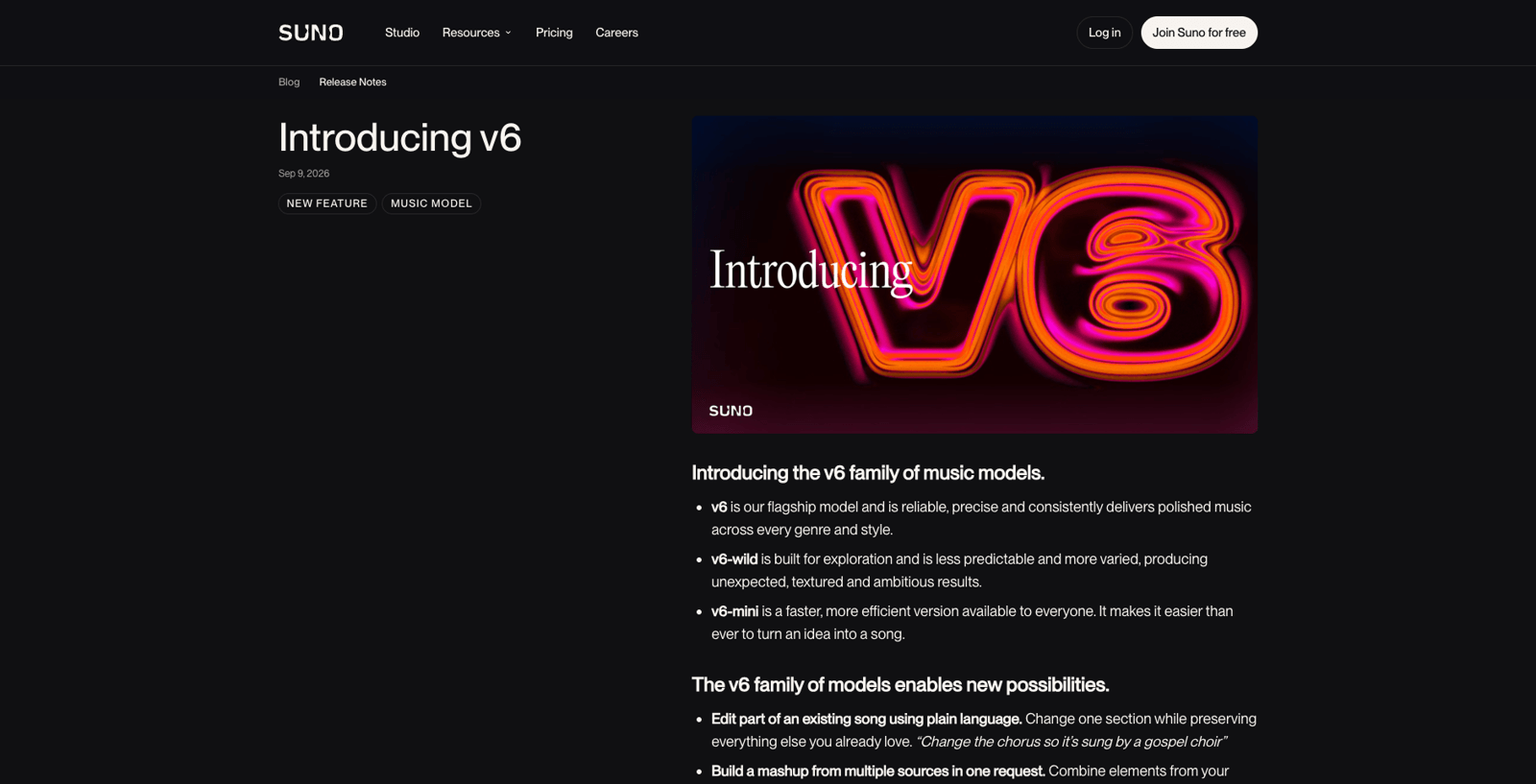
Suno's official release notes (Sep 9, 2026) introducing v6, v6-wild, and v6-mini. Source: suno.com/release-notes, accessed Sep 12, 2026.
Most Suno coverage is written for musicians, so it's worth translating the launch into pipeline terms. Three things changed on September 9 that matter to anyone making short-form video:
1. Your visual can be the starting point. The headline capability for this workflow is multimodal input. Suno's announcement describes it plainly: create with text, audio, images and video — "Make a song based on this image, this audio, and my journal entry." Suno's own launch post on X puts it even more directly: "Turn images, videos, and voice memos into music." For a creator who already has finished footage, that inverts the old order — you no longer need to describe your video in a text prompt and hope the music lands close; the visual itself becomes the brief.
2. One release, three models. v6 ships as a family: v6 is the flagship, described by Suno as reliable and precise "across every genre and style"; v6-wild is built for exploration and "less predictable and more varied"; v6-mini is the faster, more efficient model available to everyone. Which one fits your step in the pipeline is a decision we'll map below.
3. The clock is ticking on old models. Suno states that as v6 rolls out, previous models will be retired and the platform moves entirely onto the v6 generation. If you built an older workflow around a specific legacy model's sound, plan to re-baseline on v6.
That's the extent of the release news you need. The rest is workflow.
The visuals-first workflow, end to end
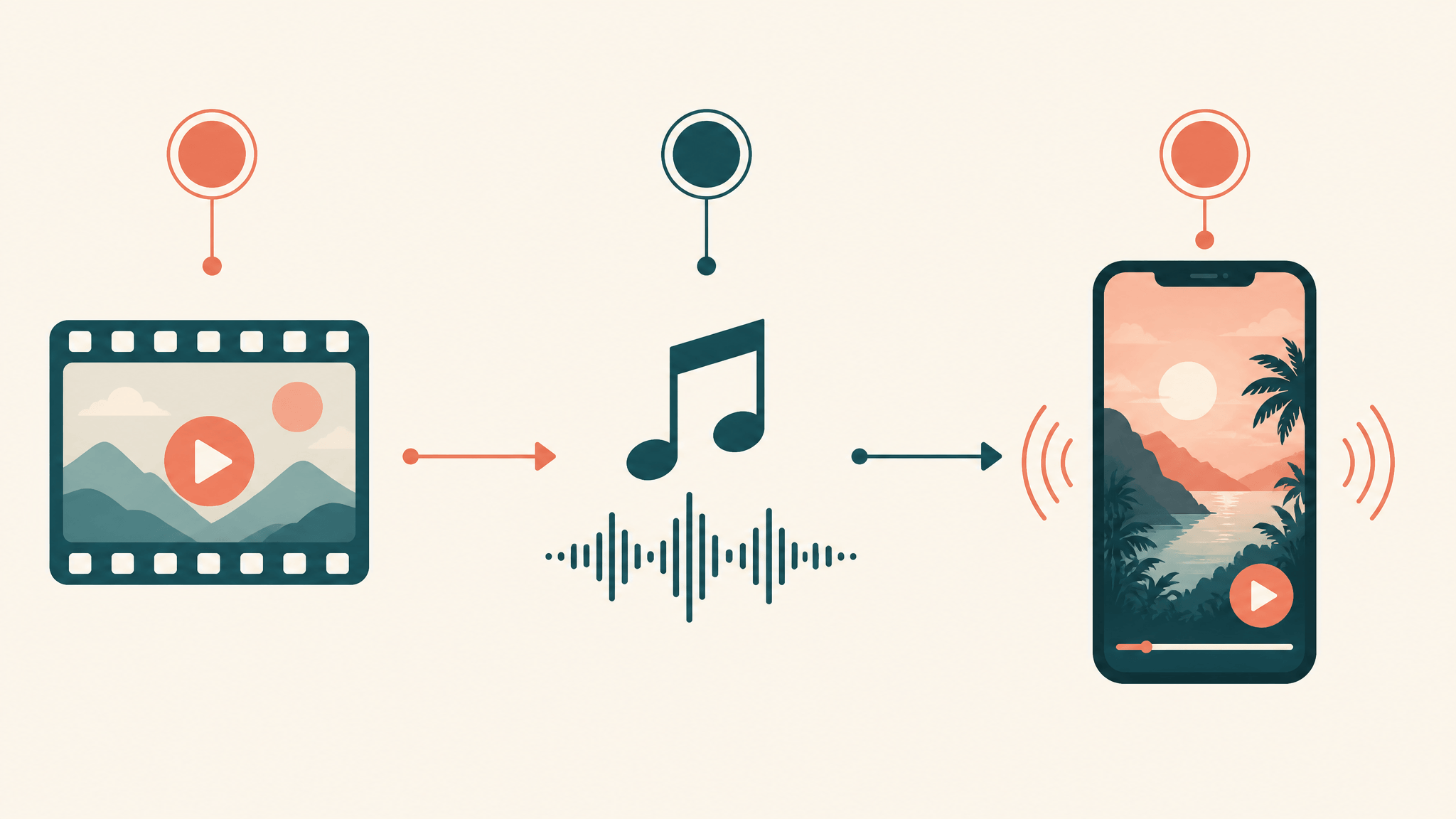
Step 1: Lock your visuals before you touch audio
Music follows picture in short-form video — the cut points, the pacing, the emotional beat all live in the footage. Generating the video first also gives Suno something concrete to work from, which is exactly what v6's image and video input are for.
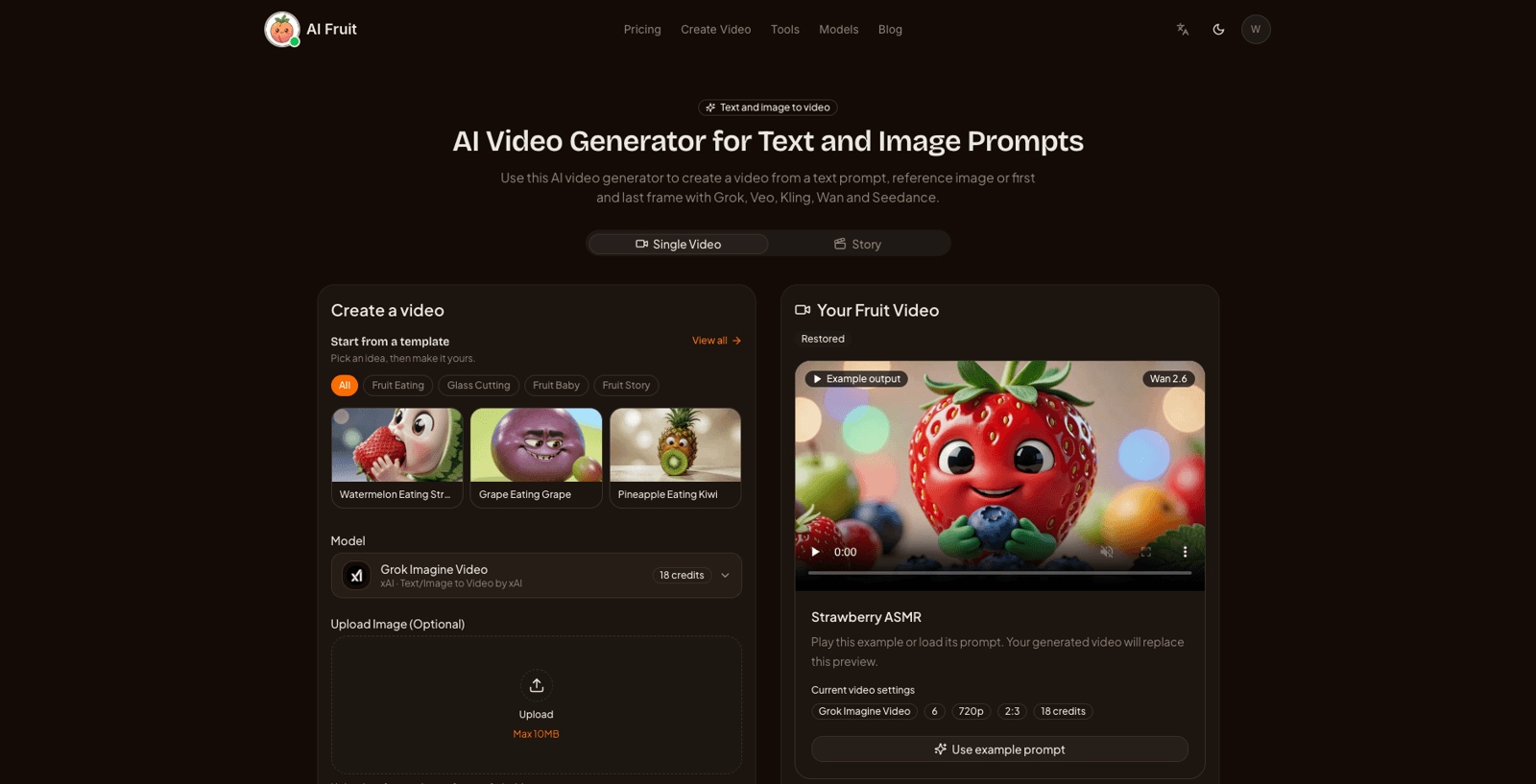
If you're making fruit-style or other short-form AI clips, AI Fruit's AI video generator handles this first step: it creates videos from prompts, images, templates, or a selected model, shows model options and credit costs before you generate, and lets you download the result you like. Any generator works — the point of the pipeline is that the output of this step becomes the input of the next one.
One practical habit: before leaving this step, note the clip's length, its overall mood in one sentence, and the timestamp of its key moment. You'll use those in Step 2.
Step 2: Hand the visual — or a voice memo — to Suno v6
Open Suno's create flow and start from your visual rather than a blank text prompt. The documented capability is "create with text, audio, images and video," so you can feed the clip itself, a still frame from it, or a combination — Suno's example prompt is "Make a song based on this image, this audio, and my journal entry."
The voice-memo route is the sleeper option for creators. Instead of writing a music brief, record yourself describing the video as you rewatch it: where it speeds up, where the punchline lands, what the ending should feel like. That memo becomes the audio input. To be clear, this is a planning heuristic — a way to use the documented voice-memo input — not a tested technique with measured results. It costs one minute and often produces a more specific brief than adjectives in a text box.
Step 3: Pick the right v6 model for the job
| Model | Access | Best for in this pipeline |
|---|---|---|
| v6 | Paid (Pro/Premier) | The final soundtrack — Suno describes it as reliable, precise, and consistently polished across genres |
| v6-wild | Paid (Pro/Premier) | Mood exploration — unexpected, varied results you can riff on or refine back in v6 |
| v6-mini | Free for everyone | Drafts and idea sweeps — fast, efficient results before you commit credits to the final render |
A sensible split for paid users: explore direction on v6-wild, then produce the final track on v6. Free users can run the whole loop on v6-mini — Suno bills it as delivering "better, faster results than any free model on any music creation platform," which is Suno's own claim, not ours.
Step 4: Revise without rebuilding
Short-form video usually means fast iteration, and v6's edit features exist for exactly that. Per the announcement, you can edit part of an existing song in plain language ("change the chorus so it's sung by a gospel choir") while preserving the rest, change a single lyric without rebuilding the song, build mashups from multiple sources in one request, and sample or isolate parts of a track. Suno also offers Studio, its browser-based DAW, for deeper editing beyond quick prompts.
For the pipeline, the useful mental model is: iterate on the section that clashes with the picture, not the whole track. If the intro works but the drop misses your key moment at 0:12, that's a section edit, not a regeneration.
Step 5: Bring picture and sound together
Download the track from Suno and bring both files into your editor. Syncing AI-generated music to AI-generated footage is ordinary editing practice, and a few habits help: match your cut points to the track's structure, keep the platform's loop behavior in mind for seamless replays, and export in the format your target platform prefers. None of this is Suno-specific feature behavior — it's the same last mile any soundtrack goes through, and it's where the two halves of your pipeline finally become one post.
Where this fits in a posting pipeline
Once the loop works for one clip, it scales. The visual step and the music step are independent enough to batch: generate a week of footage first, then score all of it in one Suno session while the clips' moods are fresh. Creators running recurring formats — a series, a character, a template — get the most leverage here, because each new episode reuses a pipeline instead of reinventing one. Voice memos also accumulate: a folder of 30-second mood notes per clip becomes a reusable brief library.
Limits to know before you start
These are consolidated from the official sources; each matters to the workflow above.
- Access is tiered. v6 and v6-wild are available only to paid (Pro/Premier) users. v6-mini is the free option. Details like render limits per tier aren't in the announcement — check Suno's current pricing page.
- Details are still thin. The launch documents what v6 can do, not every how — exact file formats, input length limits, and generation times aren't specified in the announcement or release notes. Expect to learn those at the console.
- Uploads are screened. Suno has introduced safeguards that screen uploaded audio files and lyrics for unauthorized use. Your own generated visuals and voice memos are straightforwardly yours, but it's a real gate in the flow.
- The ground is shifting. All pre-v6 models are being retired, and v6 is the first generation developed with industry partners (Warner Music Group, BMG, Believe). Music Ally notes lawsuits from UMG and Sony continue regardless. What that means practically: the tool you're building a pipeline on is changing fast, and commercial-use questions for any generated track are governed by Suno's current terms — not guaranteed by anyone's blog post, including this one.
- No quality verdicts here. We haven't benchmarked v6's output against previous models or competitors. The workflow above is documented capability plus planning practice, not a review.
The loop, closed
Short-form video used to have a clean division: AI made the pictures, and you were on your own for the sound. Suno v6's image, video, and voice-memo input ends that split. Finish the clip, feed it forward, pick the model that matches your stage — explore on v6-wild, finalize on v6, draft on v6-mini — revise the section that misses, and sync. The visuals and the soundtrack are now one creative session instead of two separate hunts.